

Your Netgear router shows all the lights are on, your devices are connected to WiFi, but there is no internet access. This is one of the most common issues Netgear router users deal with, and it can happen out of nowhere — one minute everything works, the next minute nothing loads.
Before you blame your internet provider, let us go through the troubleshooting steps that fix this problem most of the time.
This fixes the problem more often than you would expect. A simple restart clears temporary glitches in the router memory and forces it to establish a fresh connection with your ISP.
The order matters here. The modem needs to fully boot and establish a connection with your ISP before the router tries to pull an IP address from it.
Before spending time troubleshooting your router, make sure the internet is actually reaching your home. Connect a computer directly to your modem using an ethernet cable, bypassing the router entirely. If you still have no internet, the problem is with your ISP or modem, not the Netgear router. Call your provider to check for outages in your area.
The ethernet cable connecting your modem to your Netgear router must be plugged into the WAN port (usually yellow) on the router, not one of the LAN ports. This is a surprisingly common mistake, especially after moving the router or cleaning behind the desk. The WAN port is the only port that receives internet from the modem. If the cable is in a LAN port, the router will have no internet to distribute.
Also try a different ethernet cable. Cables can go bad over time, especially if they have been bent sharply or pinched behind furniture.
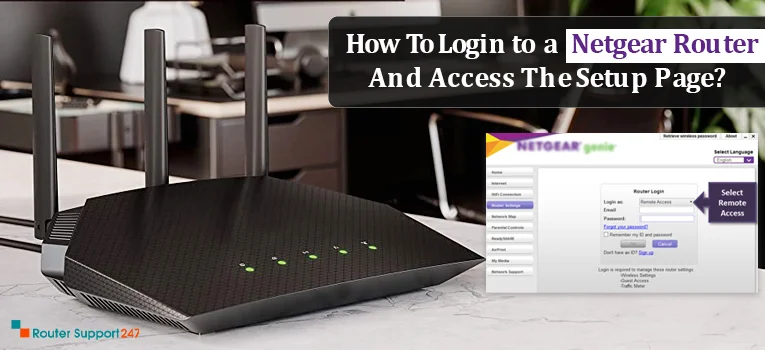
Log into your Netgear router admin panel by opening a browser and going to routerlogin.net or 192.168.1.1. Use your admin credentials to log in. Then check these settings:
Outdated firmware can cause connectivity problems as ISPs update their infrastructure. Log into your Netgear admin panel, go to Advanced then Administration then Firmware Update, and click Check. If an update is available, install it and let the router restart. Do not unplug the router during a firmware update as this can brick the device.
If nothing else works, a factory reset can clear out any corrupted settings. Press and hold the Reset button on the back of the router with a paperclip for 10 seconds. The router will restart with default settings. You will need to set up your WiFi name, password, and internet connection from scratch using the Netgear Nighthawk app or the web browser setup wizard at routerlogin.net.
If your Netgear router is more than 5 years old and you are experiencing frequent disconnections even after troubleshooting, it might be time for a replacement. Older routers struggle with the number of devices modern households connect — smart TVs, phones, tablets, smart home devices can easily exceed 20 connections. Newer WiFi 6 routers handle more devices with better stability and speed.
Q.1 Why does my Netgear router say connected but no internet?
Ans. This usually means your router has a local WiFi connection to your devices but cannot reach the internet through your modem. The most common causes are a loose WAN cable, an ISP outage, incorrect internet connection type in router settings, or a DNS server issue. Start by power cycling both your modem and router in the correct order — modem first, then router after the modem is fully online.
Q.2 Should I use DHCP or Static IP for my Netgear router internet setup?
Ans. For most home internet connections, DHCP is the correct choice. DHCP lets the router automatically receive an IP address from your modem and ISP. Static IP is only needed if your ISP specifically assigned you a fixed IP address, which is rare for residential accounts. If you are not sure, contact your ISP and ask which connection type they require. Using the wrong setting is a common reason the router connects to the modem but has no internet access.
Q.3 How often should I restart my Netgear router to prevent connection issues?
Ans. There is no strict rule, but restarting your Netgear router once every 2 to 4 weeks can help prevent memory leaks and performance degradation. If you notice your speeds dropping or devices randomly disconnecting, a restart often helps. Many newer Netgear routers have a scheduled reboot option in the admin settings under Advanced then Administration that lets you set an automatic weekly restart during off-hours like 3 AM.
What Do I Need for a Mesh Network?
14 Nov, 2024
How to Setup VPN for Netgear Nighthawk Router?
10 Nov, 2024
How do I Use the WPS Wizard on My Nighthawk Router?
24 Oct, 2024Copyright © 2026 Router Support 247 | all right reserved.
DISCLAIMER : Router Support 247 is an independent Technical Support Provider. We are not affiliated to any 3rd party brand unless specified. Call vendor for direct Support.

Top Searches in Netgear Support