

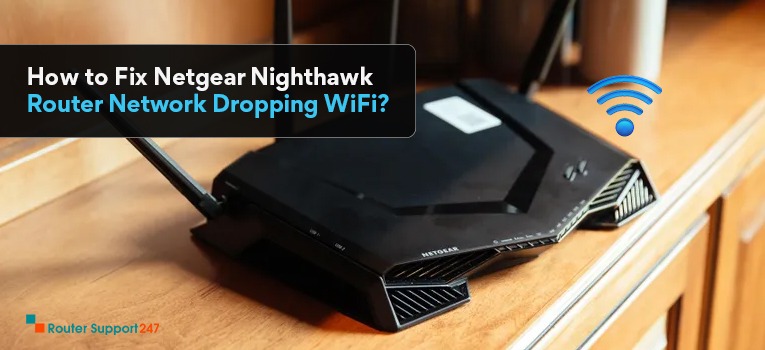
Few things are more frustrating than your Netgear router dropping the internet connection right in the middle of something important. Whether you are on a video call, streaming a movie, or just browsing, a router that keeps disconnecting can throw everything off.
The good news? This is one of the most common Netgear router issues, and most of the time you can fix it yourself without calling anyone. Let us walk through the real causes behind this problem and the actual steps that work.
Before jumping into fixes, it helps to understand what might be going wrong. Here are the usual suspects:
This sounds basic, but a proper restart fixes more issues than people expect. Here is how to do it right:
If the disconnections were caused by a temporary glitch or memory leak, this alone should sort things out.
Running old firmware is one of the top reasons for unstable connections. Netgear regularly pushes updates that fix bugs and improve stability.
After the update finishes, the router will reboot on its own. Give it a couple of minutes and check if the dropping issue is gone.
WiFi channels are like lanes on a highway. If everyone around you is using the same channel, congestion causes slowdowns and drops. Switching to a less crowded channel can make a big difference.
If you want to find the least crowded channel in your area, you can use a free app like WiFi Analyzer on your phone to scan nearby networks.
Routers generate heat, and if that heat cannot escape, the router starts throttling or disconnecting to protect itself.
After relocating the router, monitor your connection for a few hours to see if the disconnections stop.
Every device connected to your router uses a share of its processing power and bandwidth. If you have 15+ devices on a standard home router, that could be pushing it past its limits.
Your router uses DNS to translate website names into IP addresses. If the default DNS from your ISP is slow or unreliable, it can cause what feels like disconnections even though the WiFi is technically still connected.
This simple change often resolves the issue for users whose ISP DNS servers are flaky.
If nothing else has worked, a factory reset wipes all settings and gives you a fresh start. Keep in mind this erases your WiFi name, password, and any custom settings.
A factory reset resolves issues caused by corrupted settings or conflicting configurations that built up over time.
If you have tried all the steps above and your router still keeps disconnecting, the problem might be hardware-related. Routers do wear out, especially after 3-5 years of constant use. In that case, reaching out to Netgear support or considering a replacement might be the way to go.
Q.1 Why does my Netgear router keep disconnecting from the internet?
Ans. There are several reasons your Netgear router may keep disconnecting. The most common ones include outdated firmware, WiFi channel congestion from neighboring networks, router overheating due to poor ventilation, too many connected devices overloading the router, or unreliable DNS settings. Running through the fixes in this guide should help you identify and resolve the exact cause.
Q.2 How do I update my Netgear router firmware?
Ans. Log in to your router at routerlogin.net or 192.168.1.1. Go to Advanced, then Administration, then Firmware Update. Click Check to see if a new version is available. If yes, click Yes to install it. Do not power off the router during the update. After it reboots, your connection stability should improve.
Q.3 Can too many devices cause my Netgear router to disconnect?
Ans. Yes, absolutely. Every router has a limit on how many devices it can handle efficiently. When too many phones, tablets, smart home gadgets, and computers are connected at the same time, the router processor gets overwhelmed and starts dropping connections. Check your Attached Devices list and disconnect anything you are not actively using.
Q.4 What WiFi channel should I use on my Netgear router?
Ans. For the 2.4 GHz band, stick to channels 1, 6, or 11 since these are non-overlapping and experience the least interference. For the 5 GHz band, channels in the 36 to 48 range or 149 to 165 range are usually the best. Use a WiFi analyzer app to check which channel is least crowded in your area.
Q.5 Will a factory reset fix my Netgear router disconnecting issue?
Ans. A factory reset can fix disconnection problems caused by corrupted or conflicting settings. However, it erases all your custom configurations including WiFi name and password. Use it as a last resort after trying other fixes like firmware update, channel change, and DNS switch.
What Do I Need for a Mesh Network?
22 Oct, 2026Copyright © 2026 Router Support 247 | all right reserved.
DISCLAIMER : Router Support 247 is an independent Technical Support Provider. We are not affiliated to any 3rd party brand unless specified. Call vendor for direct Support.

Top Searches in Netgear Support