

Your D-Link router works fine for a while, then suddenly the WiFi signal drops and all your devices lose connection. You restart the router and it comes back, but the same thing happens again an hour later. This cycle of connecting and disconnecting is one of the most reported issues with D-Link routers, and it usually has a fixable cause.
Here is how to stop your D-Link router from dropping WiFi signal.
Outdated firmware is the most common cause of WiFi instability on D-Link routers. D-Link regularly releases firmware updates that fix connectivity bugs and improve wireless performance.
Do not turn off the router during the update process. After the update, monitor the WiFi for a day to see if the signal drops have stopped.
WiFi signal drops often happen because your D-Link router is competing with neighboring routers on the same channel. This is especially common in apartments and dense neighborhoods.
Use a free WiFi analyzer app on your phone to see which channels have the least traffic in your area and pick the quietest one.
If your D-Link router is set to a mixed wireless mode like b/g/n, older devices connecting with the slower b or g standard can drag down the entire network and cause drops for all devices. If all your devices support 802.11n or newer, set the wireless mode to N only or AC only for better stability.
D-Link routers can overheat when placed in enclosed spaces, stacked on other electronics, or left in direct sunlight. An overheating router will throttle its performance and may drop WiFi connections randomly.
Some D-Link routers have power saving or green mode features that reduce WiFi radio power during low usage periods. This can cause signal drops when the router scales down too aggressively.
Sometimes what looks like a WiFi signal drop is actually a DNS failure where your devices are connected but cannot resolve website addresses. Setting a reliable public DNS can fix this:
Budget D-Link routers can handle about 15 to 20 simultaneous connections before performance degrades. If you have many smart home devices, phones, tablets, laptops, and smart TVs all connected, the router may be overwhelmed. Check how many devices are connected in the admin panel under Status then Connected Clients. Disconnect devices you are not using or set up a separate guest network for IoT devices.
If nothing else works, corrupted settings might be causing the drops. Press and hold the reset button on the back of the router for 10 seconds to restore factory defaults. Set up the router from scratch at 192.168.0.1. This often fixes persistent WiFi instability that accumulated over months of configuration changes.
Q.1 Can WiFi interference from other devices cause my D-Link router to lose signal?
Ans. Yes, WiFi interference is a major cause of signal drops. Devices like microwave ovens, cordless phones, baby monitors, and Bluetooth speakers all operate on or near the 2.4GHz frequency and can interfere with your router signal. Even neighboring WiFi routers cause interference if they are on the same channel. Move your D-Link router away from these devices and switch to the 5GHz band if your devices support it since 5GHz has much less interference than 2.4GHz.
Q.2 Should I use 2.4GHz or 5GHz on my D-Link router for a stable connection?
Ans. For stability, 5GHz is generally better because it has more available channels and less interference from household devices and neighbors. However, 5GHz has a shorter range and does not penetrate walls as well as 2.4GHz. Use 5GHz for devices that are in the same room or nearby rooms as the router. Use 2.4GHz for devices that are far from the router or behind multiple walls. Many D-Link routers broadcast both bands simultaneously so you can connect each device to whichever band works best for its location.
Q.3 How do I know if my D-Link router needs to be replaced?
Ans. If your D-Link router is more than 4 to 5 years old and keeps dropping WiFi despite trying all the fixes in this article including firmware updates, channel changes, and factory resets, it is probably reaching the end of its lifespan. Other signs include the router feeling extremely hot even in an open area, speeds significantly lower than what your ISP provides, and the router needing frequent restarts to work properly. Modern WiFi 6 routers handle more devices with better stability and are worth the upgrade.
How to Fix D-Link Router Keeps Losing WiFi Signal?
14 Oct, 2026
How To Reset Dlink Wi-Fi Extender?
8 Dec, 2024
How to Fix D-Link Router Slows Down Internet Speed?
28 Nov, 2024
How to Change a D-Link Wireless Password ?
26 Nov, 2024
How do I Find My DLink IP Address?
13 Oct, 2024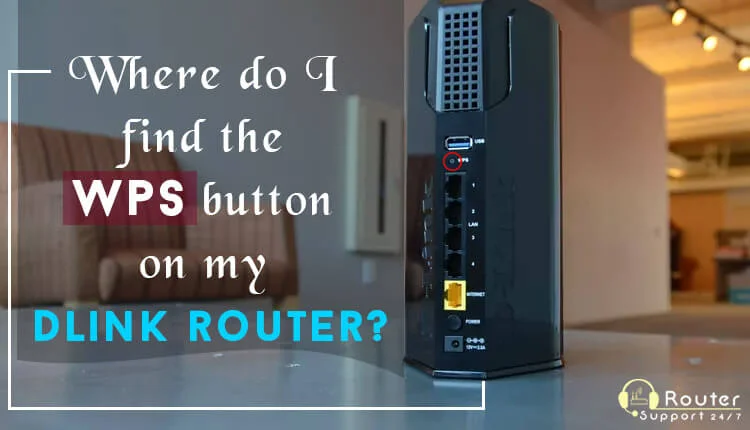
Where do I Find the WPS Button on My Dlink Router?
12 Oct, 2024Copyright © 2026 Router Support 247 | all right reserved.
DISCLAIMER : Router Support 247 is an independent Technical Support Provider. We are not affiliated to any 3rd party brand unless specified. Call vendor for direct Support.

Top Searches in D-link Support