

A Buffalo router that is powered on but not connecting to the internet is a common issue that can be caused by several things. The router lights may show a normal WiFi connection, but when you try to open a website nothing loads. This usually points to a problem between the router and your ISP modem, incorrect settings, or a firmware issue. Here are the most effective fixes.
A simple power cycle fixes the majority of internet connection issues by clearing the memory and re-establishing the connection with your ISP.
Step 1: Unplug the power cable from your ISP modem first, then unplug the Buffalo router.
Step 2: Wait 60 seconds. This gives the modem enough time to fully discharge and drop the old connection.
Step 3: Plug in the modem first and wait 2 to 3 minutes until all its lights are solid and stable.
Step 4: Now plug in the Buffalo router and wait another 2 minutes for it to fully boot and connect to the modem. Check if the internet light turns solid green or white indicating a successful WAN connection.
A loose or damaged ethernet cable between the modem and router is a surprisingly common cause of no internet.
Step 1: Make sure the ethernet cable from your ISP modem is plugged into the WAN or Internet port on the Buffalo router. This port is usually a different color from the LAN ports.
Step 2: Try a different ethernet cable. Cables can develop internal breaks that are not visible from the outside especially if they have been bent or pinched.
Step 3: Check that the cable clicks firmly into both the modem and router ports. A half-inserted cable can cause intermittent or no connection.
Before troubleshooting the router, confirm that your internet service is actually working.
Step 1: Connect a computer directly to the ISP modem using an ethernet cable, bypassing the Buffalo router entirely.
Step 2: Try opening a website. If it loads, the problem is with the Buffalo router not the ISP. If it does not load, the issue is on the ISP side and you should contact them.
Incorrect WAN settings on the Buffalo router will prevent it from getting an internet connection from the modem even if everything is physically connected correctly.
Step 1: Log into the Buffalo router admin panel by typing 192.168.11.1 in your browser. The default username is admin and the default password is password.
Step 2: Go to Internet or WAN settings. Most home connections use DHCP which means the router automatically gets an IP address from the modem. Make sure the connection type is set to DHCP or Automatic.
Step 3: If your ISP uses PPPoE like many DSL providers, select PPPoE and enter the username and password provided by your ISP.
Step 4: Click Apply and wait for the router to reconnect. The internet light should turn solid within a minute.
Sometimes the router connects to the modem fine but uses slow or broken DNS servers which makes it seem like there is no internet even though the connection is active.
Step 1: In the Buffalo admin panel, go to Internet or WAN settings and look for the DNS section.
Step 2: Change the DNS servers from automatic to manual and enter Google DNS 8.8.8.8 as primary and 8.8.4.4 as secondary. Alternatively use Cloudflare DNS 1.1.1.1 and 1.0.0.1.
Step 3: Save the settings and restart the router. Try loading a website to see if the issue is resolved.
Outdated firmware can have bugs that prevent the router from maintaining a stable WAN connection.
Step 1: Log into the Buffalo admin panel at 192.168.11.1.
Step 2: Go to Administration or Management then Firmware Update. Click Check for Updates or visit the Buffalo support website and download the latest firmware for your specific model.
Step 3: Upload the firmware file and wait for the update to complete. Do not unplug the router during the update process. The router will restart automatically.
If none of the above fixes work, a factory reset clears all settings and lets you start fresh.
Step 1: Find the small reset pinhole on the back of the Buffalo router.
Step 2: Press and hold the reset button with a paperclip for 10 seconds while the router is powered on. The lights will flash and the router will reboot.
Step 3: After the reset, log into 192.168.11.1 with the default credentials and set up your internet connection and WiFi from scratch. Make sure to select the correct WAN connection type for your ISP.
Q.1 Why does my Buffalo router have WiFi but no internet connection?
Ans. Having WiFi but no internet means your devices are connecting to the Buffalo router successfully but the router itself is not getting internet from the modem. This is almost always a WAN side problem. Check the ethernet cable between the modem and router WAN port, verify the WAN connection type in router settings matches what your ISP requires, and make sure your ISP service is active by connecting a computer directly to the modem. Also check the internet or WAN LED on the router. If it is off or red the router is not receiving a signal from the modem.
Q.2 Does the Buffalo router work with any ISP modem or are there compatibility issues?
Ans. Buffalo routers work with most ISP modems and modem-router combos. However if your ISP provided a modem-router combo device, you may run into double NAT issues where both devices try to assign IP addresses. The fix is to put your ISP modem-router into bridge mode which disables its routing function and lets the Buffalo router handle everything. Contact your ISP to enable bridge mode on their device or look for it in the ISP device admin panel under LAN or NAT settings.
Q.3 How do I know if my Buffalo router hardware is faulty and not just a settings issue?
Ans. If you have tried all the troubleshooting steps including factory reset, confirmed your ISP connection works by testing directly with the modem, used a known good ethernet cable, and the Buffalo router still will not connect, the WAN port or internal hardware may be faulty. Try connecting the modem cable to one of the LAN ports temporarily. If that works the WAN port is damaged. Also check if the router is overheating by touching it. If it is very hot, let it cool down completely and try again. A router that keeps losing connection when hot likely has a failing component. If the router is under warranty contact Buffalo support for a replacement.
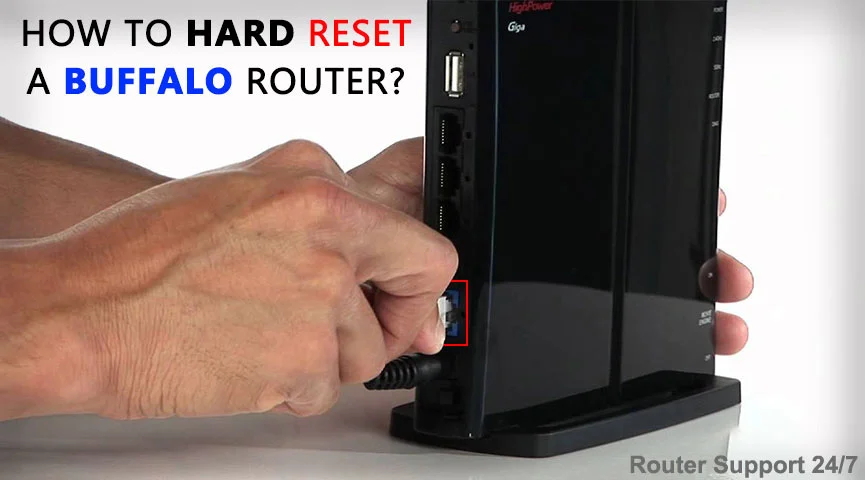
How to Hard Reset a Buffalo Router?
17 Aug, 2024Copyright © 2026 Router Support 247 | all right reserved.
DISCLAIMER : Router Support 247 is an independent Technical Support Provider. We are not affiliated to any 3rd party brand unless specified. Call vendor for direct Support.

Top Searches in Buffalo Support